

Notifications
On Wayfront, each team member can customize their notification preferences to control which emails they receive by clicking on their image on the top right → Profile.
Team Notifications
Team notification preferences are split into four categories: Orders, Tickets, Payments, and Onboarding Forms. Each notification type can be toggled independently for In-app and Email delivery.
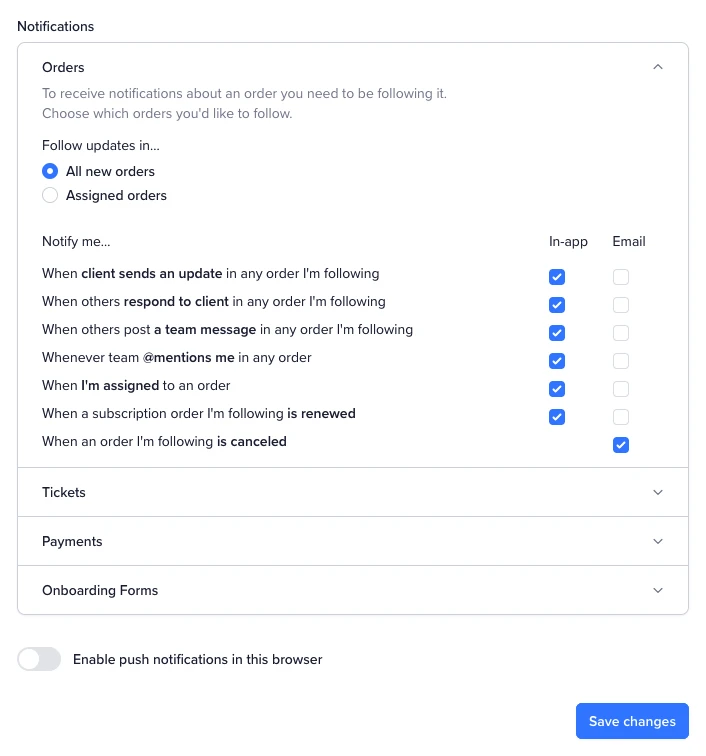
Order Notifications
To receive order notifications, you need to be following the order. You can choose to automatically follow all new orders or only orders assigned to you.
For orders you follow, you can be notified when:
A client sends an update
Another team member responds to the client
Someone posts a team message (internal note)
A team member @mentions you in any order
You are assigned to an order
A subscription order is renewed
An order is canceled
Ticket Notifications
Ticket notifications work the same way. You can choose to follow all new tickets or only tickets assigned to you.
For tickets you follow, you can be notified when:
A client sends an update
Another team member responds to the client
Someone posts a team message
A team member @mentions you in any ticket
You are assigned to a ticket
Payment Notifications
Payment notifications cover invoices, subscriptions, and affiliate commissions. You can be notified when:
An invoice is paid
A subscription payment is received
A subscription payment has failed
A subscription is updated or canceled
An affiliate commission is created
Onboarding Form Notifications
You can be notified when a client fills out an onboarding form. This is useful for knowing when a new order is ready to start working on.
Client Notifications
Clients can manage their notification preferences from their profile by clicking on their image on the top right → Profile. There are three settings they can configure:

Email and Portal vs Portal Only
Clients can choose between receiving notifications via both email and in the portal, or portal only. If they switch to portal only, they’ll need to log in to read any replies or updates.
Team Order Updates
If a client is part of a team, they can check "Get updates about your team’s orders" to receive notifications for all orders placed by their team. If left unchecked, they’ll only follow updates on their own orders.
Following Orders and Tickets
Clients are automatically subscribed to notifications for orders and tickets they create. They can unfollow specific orders or tickets if they don’t want updates, and re-follow them at any time.
Push Notifications
Clients can also enable browser push notifications to get real-time alerts without relying on email. This can be toggled on or off from the same notification preferences section.
All client notifications are personalized to your branding, and the email templates can be customized by going to Settings → Emails.