
Client Teams
Clients can add members to their team who are automatically notified about orders. Client team members can be coworkers, the accounting department, or anyone else who needs to stay up to date with orders.
How to add client team members
To get started, click on your profile photo in the top right corner and choose "Team."
Step 1: Create a company
Before you can invite team members, you need to create a company. Click the "Add" button on the Team page and enter your company name.

Step 2: Invite team members
Once the company is created, click "Invite" to add team members. Enter their first name, last name, and email address. You can also assign specific permissions:
Collaborate on orders – the team member will be added to all your orders and subscriptions.
Collaborate on tickets – the team member will be added to all your tickets.
Access invoices – the team member will get access to your invoices and billing notifications.

Wayfront will send them a one-time login link which they can click to sign in instantly. After a successful login, they can set a password or keep signing in via magic link using their email.
Client team member restrictions
Once somebody has been added to a team, they cannot create a team of their own. However, they can still place orders through their personal account without restrictions.
Anyone who belongs to a team is able to view orders they’re added to, and send messages in those orders. With the right permission, they also have access to invoices (perfect for accountants).
Team members can also
submit intake forms, create requests in task-based subscriptions, and collaborate in tickets, but
cannot manage payment details.
Tip: Since client team members cannot create their own account, we recommend that subscriptions should belong to a single account within a company, such as the payments department.
Sharing individual orders with coworkers
Team members with the right permissions are automatically added to all orders and/or tickets. But clients can also invite coworkers into a specific order without adding them to the full team. This works like a CC – the invited person will receive updates for that order only.
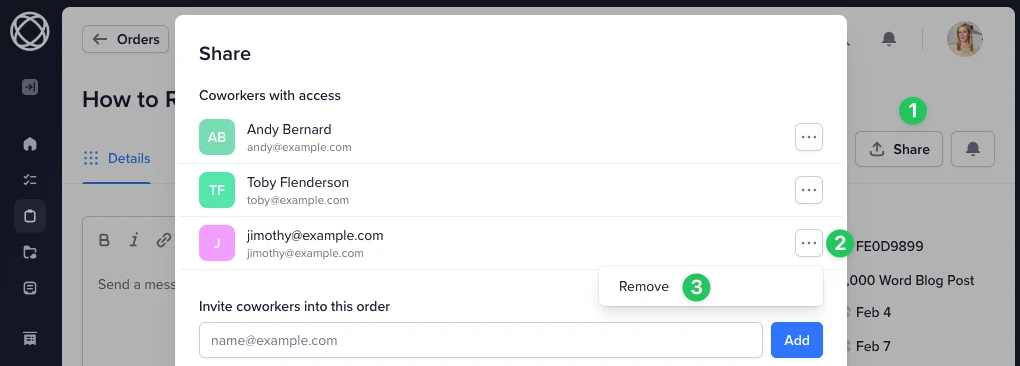
To share an order, open it and click Share on the top right. Enter the coworker’s email address and click Add.

Manually added team members can also be removed at any time by clicking on the Share button again, and removing them from there then saving the changes: